Let me paint a picture. It’s 2 AM, and a customer sends a message to your business WhatsApp. They’re asking about pricing, availability, and delivery timelines. You’re asleep. They don’t get an answer until morning. By then, they’ve gone to a competitor.
This exact scenario is why I built my first WhatsApp chatbot. And within a month, it was handling 40% of my inquiries without me lifting a finger. In 2026, building one of these at home is easier than you think — and I’ll show you exactly how, step by step.
What You’ll Build Today
By the end of this guide, you’ll have a WhatsApp chatbot running on your laptop that can answer customer questions, take basic orders, and forward complex queries to you. It’ll work 24/7, cost you nothing beyond the API credits, and you can build it in a single weekend.
Before We Start: What You’ll Need
| Requirement | Details | Cost |
|---|---|---|
| A computer | Any laptop/desktop (Windows/Mac/Linux) | Free (you have it) |
| Python 3.10+ | Install from python.org | Free |
| Twilio account | Free WhatsApp sandbox access | Free tier |
| OpenAI or Gemini API | For AI responses | Free credits included |
| Ngrok (or similar) | For local testing with webhooks | Free |
| About 4-6 hours | Spread across a weekend | Your time |
The Architecture: How Everything Connects
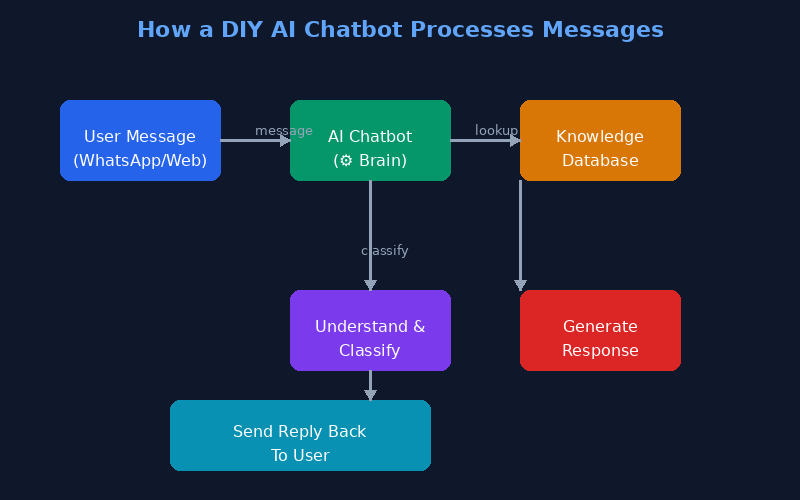
Here’s the high-level flow before we dive into code:
- User sends a WhatsApp message to your Twilio number
- Twilio forwards it to your webhook (a Python server running on your laptop or a free cloud service)
- Your Python script classifies the message: Is it a question? An order? A complaint?
- AI generates a response using your knowledge base or a smart prompt
- Your script sends the response back through Twilio to the user
It sounds complex, but the actual code is surprisingly short. Let’s build it.
Step 1: Set Up Twilio WhatsApp Sandbox
Twilio gives every new account a WhatsApp sandbox for testing. It’s a special number you can use to experiment without paying for a dedicated number upfront.
- Go to twilio.com and sign up for a free account
- Navigate to Messaging → Try it Out → WhatsApp
- You’ll get a sandbox number and a join code
- Send the join code via WhatsApp to activate your session
It takes about 5 minutes. Once done, any message you send to that number will be forwarded to the webhook URL we’ll set up next.
Step 2: Write the Python Webhook
Create a new folder called whatsapp-bot and inside it, create a file called bot.py. Here’s the complete code:
from flask import Flask, request
from twilio.twiml.messaging_response import MessagingResponse
import openai

app = Flask(__name__)
openai.api_key = "your-api-key-here"

# Your knowledge base
KNOWLEDGE = {
    "pricing": "Our basic plan starts at ₹499/month.",
    "hours": "We're open Monday to Friday, 9 AM to 6 PM.",
    "delivery": "Standard delivery takes 3-5 business days.",
}

@app.route("/webhook", methods=["POST"])
def webhook():
    msg = request.form.get("Body", "").lower()
    resp = MessagingResponse()

    # Check knowledge base first
    matched = False
    for key, answer in KNOWLEDGE.items():
        if key in msg:
            resp.message(answer)
            matched = True
            break

    # If not found, use AI
    if not matched:
        ai_response = openai.chat.completions.create(
            model="gpt-4",
            messages=[
                {"role": "system", "content": "You answer business inquiries."},
                {"role": "user", "content": msg}
            ]
        )
        resp.message(ai_response.choices[0].message.content)

    return str(resp)

if __name__ == "__main__":
    app.run(port=5000)
That’s the entire bot — about 30 lines of code. Let me explain what’s happening:
- Flask web server listens for incoming POST requests from Twilio
- Knowledge base check first looks for known keywords (pricing, hours, delivery)
- AI fallback only fires if the knowledge base doesn’t have an answer — saves tokens!
- Twilio SDK formats the response as a WhatsApp message
Step 3: Expose Your Local Server With Ngrok
Your bot is running on localhost:5000. But Twilio needs a public URL to send messages to. That’s where ngrok comes in.
Install ngrok, then in a new terminal window:
ngrok http 5000You’ll see a forwarding URL like https://abc123.ngrok-free.app. Copy that URL.
Go back to your Twilio WhatsApp sandbox settings and paste https://abc123.ngrok-free.app/webhook as the webhook URL. Save it.
Important: Ngrok URLs change every time you restart ngrok, unless you have a paid plan. For permanent hosting, deploy to Render, Railway, or PythonAnywhere — all have free tiers.
Step 4: Test It
Send a WhatsApp message to your Twilio sandbox number. Try “What are your pricing plans?” — it should reply with the knowledge base answer. Try something not in the knowledge base — the AI will generate a custom response.
If it doesn’t work, here are the most common issues and fixes:
| Problem | Likely Cause | Fix |
|---|---|---|
| No response from bot | Ngrok URL not set correctly in Twilio | Check the webhook URL in Twilio sandbox settings |
| AI responses too slow | Free API tier rate limits | Cache common answers in your knowledge base |
| Bot misunderstands messages | Weak system prompt | Make the system prompt very specific to your business |
| Responses cut off | Twilio has a 1600 character limit per message | Split long responses into multiple messages |
Taking It Further: 5 Upgrades for Your Bot
Once the basic bot is working, here’s how to level it up:
- Add order tracking — Connect to your inventory API or Google Sheet to check order status in real time
- Send images and PDFs — Twilio supports media messages. Your bot can send product catalogs or receipts.
- Route to human agents — When the AI detects a complex issue, forward the conversation to your personal WhatsApp
- Multi-language support — Ask the user’s language preference at the start and set the AI accordingly
- Log every conversation — Save all chats to a database so you can review and improve over time
What I Wish Someone Had Told Me Before I Started
- Don’t over-engineer — My first version worked because it was simple: keyword matching + AI fallback. I wasted weeks trying to build a fancy NLP pipeline that I didn’t actually need.
- Test with real users early — Hand your phone to a friend and ask them to try to break the bot. They’ll find edge cases you never thought of.
- Set expectations — The very first message from your bot should say “I’m an AI assistant. If I can’t help, I’ll connect you with a human.” This sets the right expectation.
- Monitor token usage — Free API credits run out fast if every message triggers an AI call. Cache aggressively — use your knowledge base for anything predictable.
Ready to Build?
You have everything you need. A Twilio account, 30 lines of Python, and a weekend. This bot can literally run while you sleep, handling customer inquiries, taking orders, and growing your business. The best part? You built it yourself.
Start with the basic version. Get it working. Add one upgrade. Test it. Repeat. Six months from now, you’ll have a customer service system that would cost thousands to buy off the shelf — and you built it at home for free.